
Week Numbers - Pro
ISO / European, US, Middle East, Simple, Custom
Manual
The Week Number app adds selected week numbers once and also is able to delete these in one go.
You can select beforehand if you want the week numbers to appear on one particular weekday or on all days of the week. Once added all week numbers can be easily edited and synced with iCal, Google, Outlook, iCloud, etc. If you added the week numbers twice by mistake or iCloud did not work the way you expected, you can always easily remove them with the unique “Cleaner”.
-
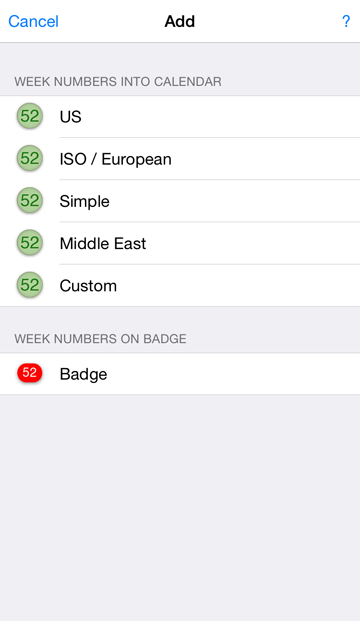
1. Choose Week Numbers.
Tap on the week numbers you want to insert into your iPhone /iPad calendar.
-
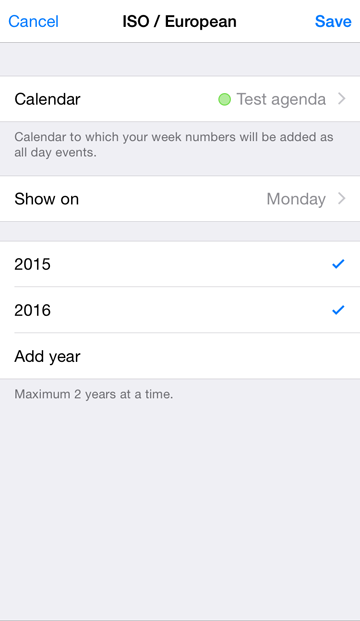
2. Choose the calendar.
a. Specify in which calendar you want the week numbers to appear.
b. Show the week numbers on one day or on all days of the week.
c. Tap save to add your week numbers to the calendar database.
Note: the app saves maximum 2 years at a time.
-
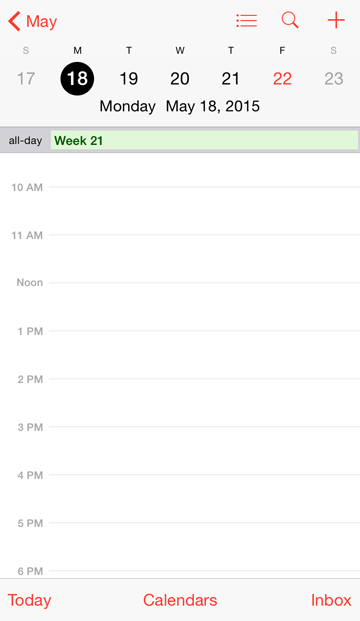
3. Added to calendar.
The week numbers appear as free all-day events in your built-in calendar where you can fully edit them, set alerts or delete them.
-
4. Move and change selection.
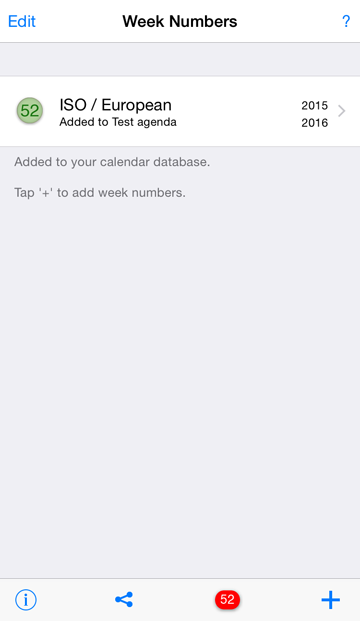
Tap on the "Added" weeknumber list to change your selection or move the list to another calendar. Don't forget to tap save.
-
5. Add and remove.
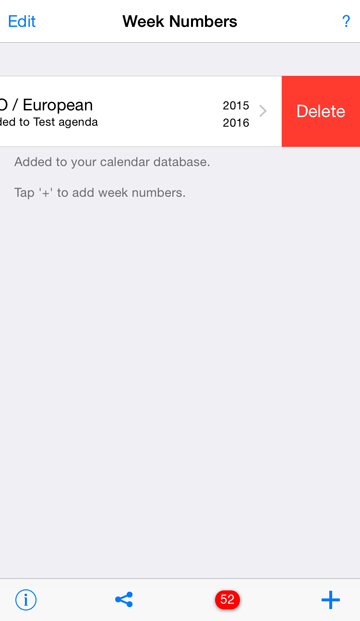
All the added week numbers can be easily deleted. Swipe to remove week numbers.
Tap' +' to add more week numbers.
-
6. Cleaner.
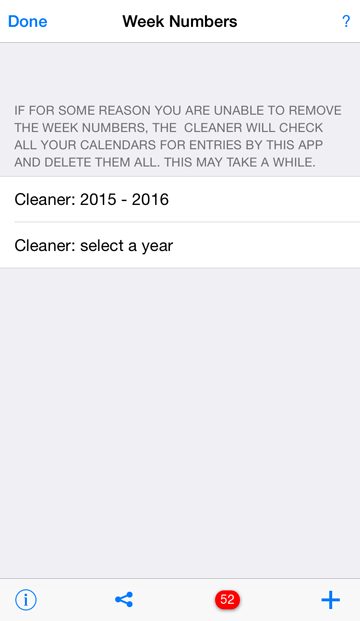
If for some reason you are unable to remove the week numbers, the Cleaner will check all your calendars for entries by THIS week number app and delete them all. This may take a while.
The Cleaner screen will automatically come up after removing the list (step 5), or by tapping Edit if the list is empty.
Double or triple entries
- Every time you add a Week Number set, this will be listed (step 4).
- To remove a list in one go (step 5).
- By removing the Week Number app, you also remove the information it stores about which week numbers it has added.
- You can remove all week numbers added by this app from your device with the Cleaner (step 6).
Doubles caused by iCloud
After merging different devices with iCloud you might end up with multiple calendars with the same name and what looks like double entries. Please check in the built in calendar and on the iCloud website how many calendars you really have.
You can find more info on iCloud: www.icloud.com
After you got the iCloud administration right, syncing your devices with iCloud can take some time, so it might take a while before the week numbers show up or disappear.
Unwanted alarms
The week numbers app does not set alarms. It only adds all-day events to the calendar. Please check if one of the calendar apps you are using (Built-in calendar, Google calendar, Exchange, etc.) does set default alarms. Then remove the weeknumbers (step 5) and add them again.